2 hours ago, on March 12 2018 Adobe released CC2018 version 22.1. This new version may mark the end of Legendary Open Multipage PDF script, since Adobe finally caught up with times and now it allows us to open multipage pdf files.
“How do I crop a Photo in Illustrator?” is the All-Time hottest topic in the Adobe Illustrator Forum, there’s a long thread with answers that go from “not possible”, to “use Photoshop”, to “use clipping masks”, to “use Artboards”. The thread also has the real answer to the question, cropping raster images in Illustrator is possible using a “cutter” path with a blending mode other than Normal, then Flattening Transparency. Great answer!! now this script tackles on the same principle as Flattening Transparency, it rasterizes the image within the bounds of the “cutter” path and discards what’s outside of the path bounds.
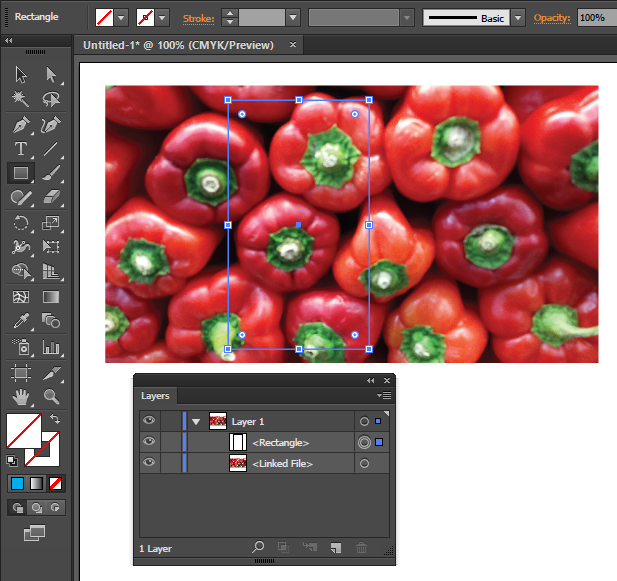
to use the script to Crop this image
draw a rectangle on top of the image to use as “cutter” path
select both, the image and the “cutter” path
run the imageCrop script
that’s all, the image gets cropped, embedded, unwanted pixels get discarded. If you don’t want your images to get destroyed, please use the other Masking methods.
Script Features
Press Shift Key before running the script to Rasterize using TypeOptimized option otherwise the script will use default ArtOptimized Press Alt Key before running the script to Rasterize using custom Resolution, otherwise the script will use an average of the base image resolution.
Scripting Adobe Illustrator is painful at times, we don’t have access to some of the most useful features available to us manually using the UI, and we also don’t have the luxury of major upgrades to the DOM as ID or PS users have enjoyed for years. With the release of CS6 some years back, Adobe surprised us with a couple of new, although undocumented commands that seemed to have great potential. One of them was executeMenuCommand(menuCommandString), the string syntax was missing, but fortunately it was quickly found out by some talented scripters, proving its value, and becoming one of the most, if not the most powerful command available.
The other command released with CS6 was applyEffect(liveEffectXML), which also had its string syntax missing, till now…well, without further ado, here’s an example
// apply offset path live effect to selected path
var idoc = app.activeDocument;
var ipath = idoc.selection[0];
xmlstring = ‘<LiveEffect name=”Adobe Offset Path”><Dict data=”R mlim 4 R ofst 20 I jntp 2 “/></LiveEffect>’;
ipath.applyEffect(xmlstring);
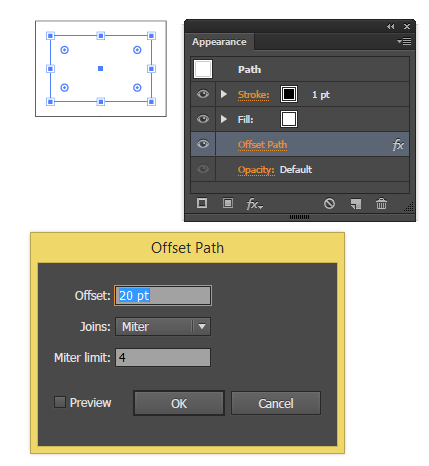
the important part of the string is the data, mlimis the MiterLimit Value “4”, ofstis the Offset Value “20”, jntpis the Join Type “2” for Miter.
How to get the XML string parameter
To get the right xml string for a particular Effect, fire up Illustrator CS5 or CS6, draw a rectangle, apply a Live Offset Path as show above, then save your file as FXG
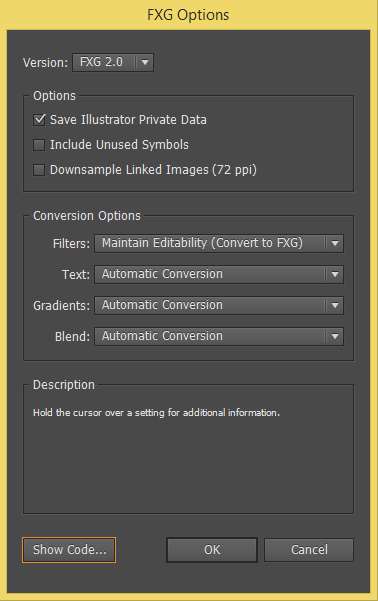
Make sure “Save Illustrator Private Data” is selected, then click on “Show Code…”, you’ll get the xfg text file generated.
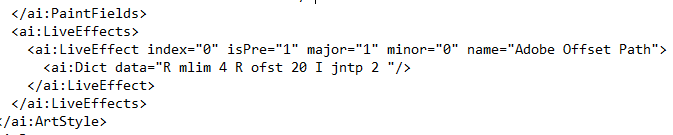
Look for the LiveEffect tag and get the name and the Dict data from it as shown below
<LiveEffect name=”Adobe Offset Path”><Dict data=”R mlim 4 R ofst 20 I jntp 2 “/></LiveEffect>
that’s all, that’s the xml string you need to add to your script.
I would like to thank Adobe’s Sanjay Kumar, without his input this command would have not seen the light of day.
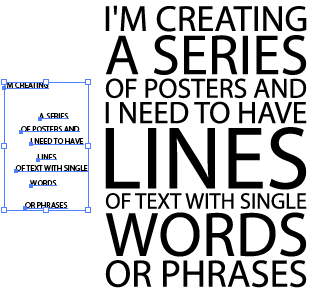
This script creates a “Block” of text out of Selected Point Text Items, that is, it re-sizes each frame so they all have the same width. Back then when I wrote the script I didn’t know this layout style was called “SlabType”, otherwise I would have picked a more suitable name, anyway, here’s my “textBlock” script. Please note that the final Block of Text is converted to Outlines.
Illustrator’s Title Case function is…how do we say it nicely?…hmm…it is very straight forward, it capitalizes the first letter of every word. While it works on some scenarios, it simply doesn’t cut it for properly capitalizing titles.
Illustrator’s simple Title Case
The Quick Brown Fox Jumps Over The Lazy Dog
Proper Title Case
The Quick Brown Fox Jumps over the Lazy Dog
to use, select a portion of text (referred as text Range) or one or more text Frames before running the script.
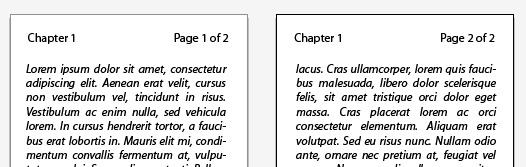
Artboards made their appearance in CS4, and ever since, users have asked the logical question “can I add page numbers to my Artboards?”. The Answers has been a quick “No”….until now, by way of a script.
// Illustrator Insert Page Numbers v2 Script
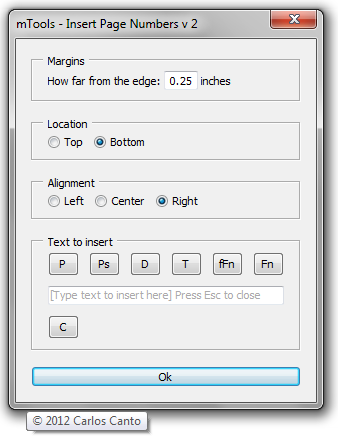
it’s primary use is to insert page numbers but it can insert anything you type in the input box.
there are a few keywords to use to insert date, time, full name, and file name.
to insert
page number – type – *page*
total pages – type – *pages*
date – type – *date*
time – type – *time*
full name – type – *fname*
file name – type – *file*
for example to insert “page 1 of 12” type “page *page* of *pages*” (without quotes).
Note, in this version, pressing “Ok” does not dismiss the dialog. The idea is to be able to enter for example:
Pages on bottom right, and file name on bottom left without having to fire the script twice.
We use cookies to enhance your browsing experience and analyze our traffic. By clicking "Accept All", you consent to our use of cookies. Read our Privacy Policy to learn more.
Cookie Preferences
We use cookies to enhance your experience. Choose which types of cookies you want to allow.
Strictly Necessary
Required
Required for core site functions such as security, load balancing, login sessions and remembering your cookie choices. No data is shared with third parties. Cannot be disabled.
Functional
Remember choices you make (language, region, preferences) to provide enhanced, personalized features. May set cookies from embedded services you interact with, such as video players or maps.
Analytics
Measure how visitors use the site (pages viewed, time on page, referring source) so we can improve it. Data may be processed by analytics providers such as Google Analytics, generally in aggregated form.
Marketing
Build a profile of your interests to show relevant advertising on this and other sites, and measure ad performance. Data may be shared with advertising partners such as Google Ads and Meta (Facebook).