Scripting Adobe Illustrator is painful at times, we don’t have access to some of the most useful features available to us manually using the UI, and we also don’t have the luxury of major upgrades to the DOM as ID or PS users have enjoyed for years. With the release of CS6 some years back, Adobe surprised us with a couple of new, although undocumented commands that seemed to have great potential. One of them was executeMenuCommand(menuCommandString), the string syntax was missing, but fortunately it was quickly found out by some talented scripters, proving its value, and becoming one of the most, if not the most powerful command available.
The other command released with CS6 was applyEffect(liveEffectXML), which also had its string syntax missing, till now…well, without further ado, here’s an example
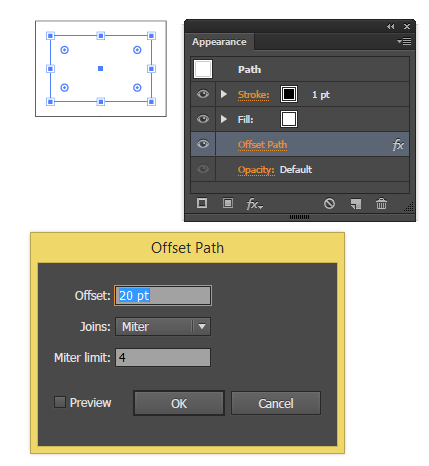
the important part of the string is the data, mlim is the MiterLimit Value “4”, ofst is the Offset Value “20”, jntp is the Join Type “2” for Miter.
How to get the XML string parameter
To get the right xml string for a particular Effect, fire up Illustrator CS5 or CS6, draw a rectangle, apply a Live Offset Path as show above, then save your file as FXG
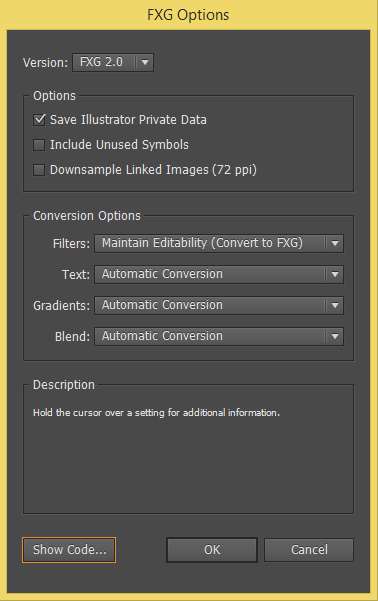
Make sure “Save Illustrator Private Data” is selected, then click on “Show Code…”, you’ll get the xfg text file generated.
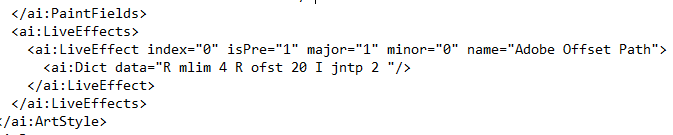
Look for the LiveEffect tag and get the name and the Dict data from it as shown below
<LiveEffect name=”Adobe Offset Path”><Dict data=”R mlim 4 R ofst 20 I jntp 2 “/></LiveEffect>
that’s all, that’s the xml string you need to add to your script.
I would like to thank Adobe’s Sanjay Kumar, without his input this command would have not seen the light of day.