Image Crop Script

Written by

in

“How do I crop a Photo in Illustrator?” is the All-Time hottest topic in the Adobe Illustrator Forum, there’s a long thread with answers that go from “not possible”, to “use Photoshop”, to “use clipping masks”, to “use Artboards”. The thread also has the real answer to the question, cropping raster images in Illustrator is possible using a “cutter” path with a blending mode other than Normal, then Flattening Transparency. Great answer!! now this script tackles on the same principle as Flattening Transparency, it rasterizes the image within the bounds of the “cutter” path and discards what’s outside of the path bounds.

to use the script to Crop this image

imageCrop1

draw a rectangle on top of the image to use as “cutter” path
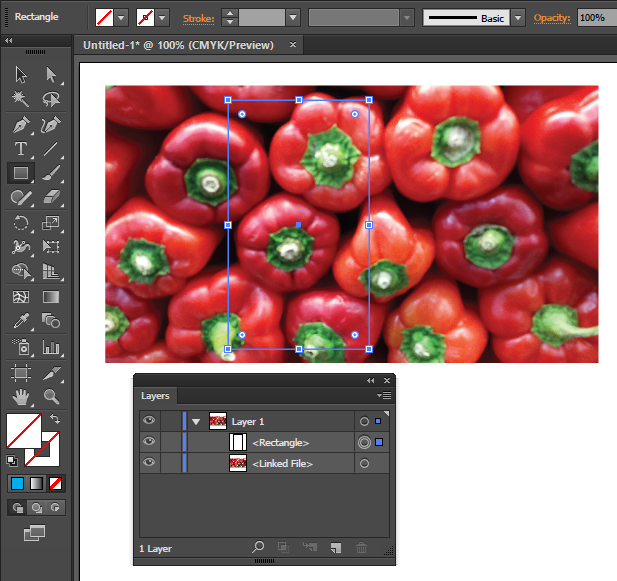
imageCrop2

select both, the image and the “cutter” path

imageCrop3

run the imageCrop script

imageCrop4

that’s all, the image gets cropped, embedded, unwanted pixels get discarded. If you don’t want your images to get destroyed, please use the other Masking methods.

Script Features

Press Shift Key before running the script to Rasterize using TypeOptimized option otherwise the script will use default ArtOptimized
Press Alt Key before running the script to Rasterize using custom Resolution, otherwise the script will use an average of the base image resolution.

Download imageCrop.jsx script

Comments

22 responses to “Image Crop Script”

  1. Sobaan Salt Avatar

    Very helpful information thanks

  2. […] the end of this tutorial, you will have a solid understanding of different methods for image cropping in Illustrator and be able to apply them confidently in your own projects. So let’s dive in […]

  3. Ray Cowie Avatar

    The ImageCrop script download does not work?

  4. […] Crop image in Illustrator download […]

  5. Paul Leachman Avatar
    Paul Leachman

    it says error 1240 : specified value less than minimum value

    what do i do?

  6. […] lo script ImageCrop, puoi ritagliare un’immagine direttamente in Illustrator senza dover passare a Photoshop o […]

  7. […] Links: Crop Imageshttp://aiscripts.com/image-crop-script/ Multiple Scripts http://shspage.com/aijs/en Design to Circles […]

  8. Bill Avatar
    Bill

    Thanks for the script it is awesome.. I made a change to it because holding the alt key was making the menu disappear in AI CC. I changed it the ctrlKey.

    line 38 from:
    if(ScriptUI.environment.keyboardState.altKey) { // press alt key to Enter a custom Resolution, otherwise use the image resolution

    to:
    if(ScriptUI.environment.keyboardState.ctrlKey) { // press ctrl key to Enter a custom Resolution, otherwise use the image resolution

    note if you want to change the default resolution change lines 55 and 56 to reflect your dpi like 300 instead of 72.
    the resolution listed on line 40 is just the default on the popup.

    Lastly I could not get it to come up on the “file,scripts”. I had added the script to the wrong folder mine in a windows 10 setup using AI CC 2018 went in this folder: C:\Program Files\Adobe\Adobe Illustrator CC 2018\Presets\en_US\Scripts\

  9. kasum Avatar
    kasum

    thanks for the script

  10. Elka Avatar
    Elka

    Thank you very mach for this script! Very useful and work perfect! 🙂

  11. Kishor Bhagat Avatar
    Kishor Bhagat

    This is very nice script. Is their any way to maintain transparency of object intact when cropped?

  12. Heiko Avatar
    Heiko

    Jaime is right, the script is rendering the images at 72 dpi .
    You can edit this behaviour by changing the “var resw and var resh” under “funktion objectResolution(obj)
    to you desired values.( line 55+56) . Just use notepad or any editor.

  13. Tobl Avatar
    Tobl

    Hi Carlos,
    really nice script, only learned about the technique through your explanation, but the script makes it even easier.
    Can’t really say what specifically triggers it, but one image (that I received already embedded, so no idea what they did to it) throws the following error when using the script, but not when cropping manually (I flatten with blend mode ‘darken’):
    Error 1239: Specified value greater than maximum allowed value
    Line: 45
    -> rasterOpts.resolution = objectResolution (image);
    As I said, I can crop that manually, just a heads up that that’s an error that can happen.
    bw,
    Tobl

    1. Carlos Avatar
      Carlos

      Hi, thanks for letting me know, let me see if I can replicate the error

      1. Tobl Avatar
        Tobl

        I was able to replicate (well, more stumbled upon once again) by rotating images exactly or very close to +/-90° before trying to crop them. (88.25° was fine, 88.5° not) The threshold seemed to be independent of image size or aspect ratio (tested 100x100px and a 5000x7000px).
        I also noticed that, as I got very close to the threshold, computation time increased by a factor 10 or so, though that was only obvious with the larger image.
        Win7x64 with 8GB RAM, though if that should be relevant, it’s likely not on a level you have control over.

  14. Marky Avatar
    Marky

    Thank you for the script. But it can only crop rectangle shapes. And not custom shapes. Especially when using a pen tool to draw the specified shape to crop.

  15. Jaime Avatar
    Jaime

    Hi carlos.
    Great solution.
    It’s there any way to raster the image using original image ColorSpace or using original image resolution?
    Thanks

    1. Carlos Avatar
      Carlos

      Hi Jaime the script uses the original resolution unless you press Alt. About color space, let me see if there are any options for it.

      1. Jaime Avatar
        Jaime

        Hi Carlos. I see the script renders image at 72 dpi unless I change it pressing alt (AI CS5 and AI CC).
        About color, I would like the script detects if the image placed is grayscale or bitmap?
        Thank you

  16. Vasily Avatar
    Vasily

    Very clean and concise way to bring such a powerful solution, great work Carlos!

  17. Bart-Jan Dekker Avatar

    That is awesome, been hoping for something like this a long time. Keep up the great work!

Leave a Reply

Your email address will not be published. Required fields are marked *

Cookie Preferences

We use cookies to enhance your experience. Choose which types of cookies you want to allow.

Strictly Necessary

Required

Required for core site functions such as security, load balancing, login sessions and remembering your cookie choices. No data is shared with third parties. Cannot be disabled.

Functional

Remember choices you make (language, region, preferences) to provide enhanced, personalized features. May set cookies from embedded services you interact with, such as video players or maps.

Analytics

Measure how visitors use the site (pages viewed, time on page, referring source) so we can improve it. Data may be processed by analytics providers such as Google Analytics, generally in aggregated form.

Marketing

Build a profile of your interests to show relevant advertising on this and other sites, and measure ad performance. Data may be shared with advertising partners such as Google Ads and Meta (Facebook).